Hello! My name is Austin Miranda. I am a Tier 3 Engineer for RingCX.
I do not believe that any of the standard Historical Analytics reports include this data by default, however, this data can be added to reports. You would need to create a new custom report from scratch, or create a custom version of a standard report.
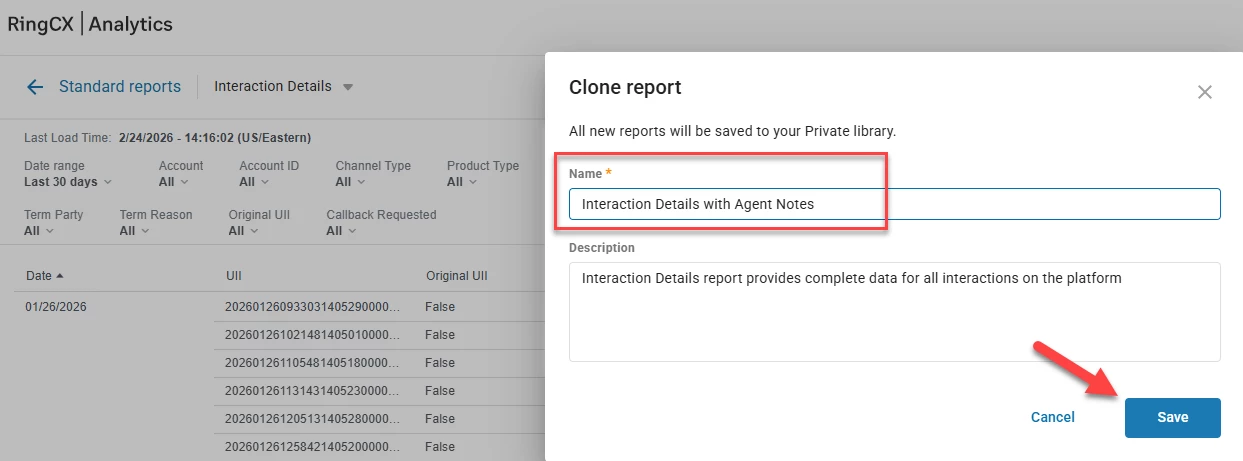
For instance, if you would like to add this data point to the Interaction Details report, navigate to this report and select “Clone”. (Screenshots attached are taken from my own test account for demonstration purposes).
Name the report as you would like, then click “Save”.
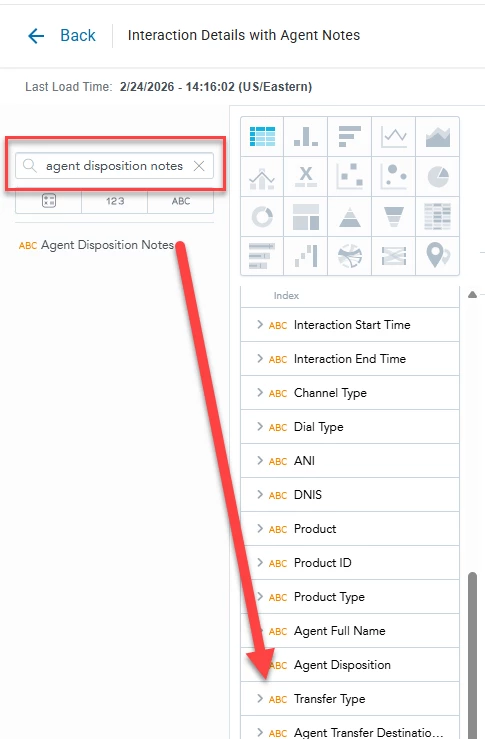
From the report editor mode, search for the “Agent Disposition Notes” Attribute, then drag and drop it into the Rows section of the report where ever you would like.
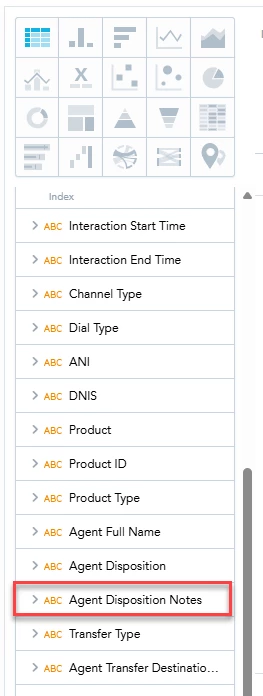
(I have added it right next to the Agent Disposition Attribute that is already on the standard Interaction Details report).
Once you have added this to your desired report, press the blue “Save” button at the top right of the report editor view and then run your newly created report to see the Agent Disposition Notes.
I hope this helps, please let me know if you have any further questions!
Hello! My name is Austin Miranda. I am a Tier 3 Engineer for RingCX.
I do not believe that any of the standard Historical Analytics reports include this data by default, however, this data can be added to reports. You would need to create a new custom report from scratch, or create a custom version of a standard report.
For instance, if you would like to add this data point to the Interaction Details report, navigate to this report and select “Clone”. (Screenshots attached are taken from my own test account for demonstration purposes).
Name the report as you would like, then click “Save”.
From the report editor mode, search for the “Agent Disposition Notes” Attribute, then drag and drop it into the Rows section of the report where ever you would like.
(I have added it right next to the Agent Disposition Attribute that is already on the standard Interaction Details report).
Once you have added this to your desired report, press the blue “Save” button at the top right of the report editor view and then run your newly created report to see the Agent Disposition Notes.
I hope this helps, please let me know if you have any further questions!